


Last Updated: 06 Jan 2026
If you’ve spent some time learning about email marketing, you’ve probably heard this sentence before:
“MailerLite is one of the easiest email marketing tools for beginners.”
I heard this everywhere.
Bloggers talked about it. YouTubers recommended it. Facebook groups praised it. Even marketers I trust kept saying the same thing — “If you want something simple and affordable, MailerLite is a good choice.”
Instead of just believing them, I decided to try it myself.
I signed up for MailerLite and used it on my own email list for a few months. I sent email campaigns, set up simple automations, made signup forms and landing pages, and checked the reports. I used it long enough to clearly see what MailerLite is good at — and where it starts to feel limited.
But I didn’t depend only on my own experience.
I read hundreds of real reviews from MailerLite users. I went through Reddit posts, Capterra and G2 reviews, user complaints, and positive feedback from people who have used MailerLite for a long time. Then I matched all of that with what I personally experienced.
That’s why this review is different.
This is an honest MailerLite review based on real use, real opinions from users, and practical results — not just marketing promises.
Let’s get started.
MailerLite’s Ease of Use: Simple, Clean, and Stress-Free
When I started using MailerLite, the first thing I noticed was how easy everything felt. And honestly, that matters a lot — because if an email tool is confusing, you end up wasting time instead of sending emails.
MailerLite’s layout just makes sense.
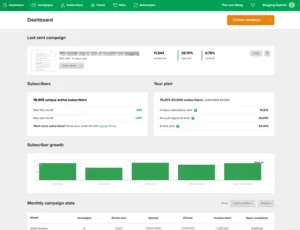
From the moment you log in, the platform guides you with a simple step-by-step checklist. It shows you exactly what to do first — set up your account, create your first campaign, and build your list. For beginners, this removes a lot of confusion.
The dashboard is clean and uncluttered. Everything you need is easy to find.
On the left side, you’ll see a menu that takes you to emails, automations, forms, landing pages, and other tools. Your account settings, templates, and profile options are also clearly placed. I never had to guess where something might be — which is not always the case with email tools.
One small feature I really liked is the Help button. It’s available almost everywhere inside the platform. If you ever feel stuck, help is just one click away — no digging through menus.
MailerLite also lets you customize how the dashboard looks. You can choose between light mode, dark mode, or let it follow your system settings automatically. It’s a small thing, but it makes working inside the platform more comfortable, especially during long sessions.
Inside your profile section, everything is simple and quick to manage. You can:
Change your profile photo
Reset your password
Turn on two-factor authentication
Update basic account settings
Subscribe to MailerLite’s updates
Nothing feels hidden or complicated.
What stood out to me most is that MailerLite stays simple but still powerful. It’s easy enough for beginners, yet it doesn’t feel limited when you want to do more advanced things later on.
Overall, navigating MailerLite was fast, smooth, and frustration-free. It’s one of those tools where you spend more time working — and less time figuring out how things work.
Now, let’s move on to the email builder.
MailerLite’s Email Editor: Simple From Day One
When I started using MailerLite, the email editor was the first thing I tested — because if creating emails feels slow or confusing, nothing else matters.
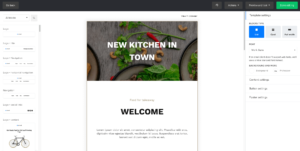
Setting up my first email was very easy. MailerLite’s drag-and-drop editor is clean, fast, and beginner-friendly. Everything you need is visible, and nothing feels hidden.
What stood out immediately is how logical the editor feels. Content blocks are neatly organized on the left, and you can drag them into your email without thinking too much. Text, images, buttons, videos, countdown timers — it’s all right where you expect it to be.
MailerLite also supports dynamic content, which lets you show certain blocks only to specific subscriber groups. It works well, though you do need to duplicate blocks if you want different versions. Not perfect, but it gets the job done.
One feature I actually enjoyed using is video embeds. You paste a YouTube link, and MailerLite turns it into an animated GIF automatically. Simple, effective, and no extra steps.

MailerLite includes an AI writing assistant inside the editor. It can help write subject lines or draft content when you’re stuck. It’s not something you’ll rely on every time, but it’s useful when you need a quick starting point.
The editor runs smoothly overall. I didn’t run into layout breaks or slow loading, and switching between desktop and mobile previews was quick. You can also schedule emails by subscriber time zone, which is a nice touch.
That said, there are a few limits. Some advanced blocks and the custom HTML editor are locked behind paid plans. Also, while there’s an Undo button, there’s no Redo — which can be annoying during longer edits.
Overall, MailerLite’s email editor does exactly what it should. It’s fast, clean, and easy to use — without constantly changing layouts or hiding basic options. It may not try to impress with flashy features, but it stays out of your way and lets you get emails sent quickly.
MailerLite’s Email Templates: Good Designs, But Paywalled
After testing the email editor, the next thing I checked was the template library — because templates can save a lot of time, especially when you’re sending emails often.
MailerLite offers around 100+ modern-looking email templates, organized into clear categories like newsletters, holidays, events, RSS campaigns, and notifications. Finding a starting point is easy, and the designs look clean and up to date.
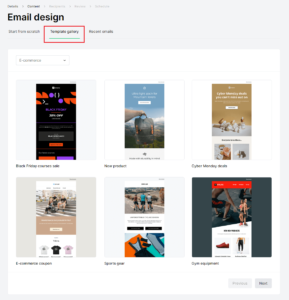
mailerlite email template gallery
The newsletter templates, in particular, stood out. They’re flexible and easy to customize, so you can adjust layouts, colors, and sections without breaking the design.
You can also save your own designs under “My Templates”, reuse content blocks, and apply global styles. This means your fonts and colors stay consistent across all future emails — a big time-saver once your branding is set.
However, there’s one important downside.
All of MailerLite’s templates are locked behind paid plans.
If you’re on the free plan, you don’t get access to the template library and will need to build emails from scratch. This is unusual, as most email tools offer at least a few templates for free users.
Overall, the templates themselves are solid and well-designed — but the paywall is something to keep in mind if you’re starting on the free plan.
MailerLite Automations: Simple and Easy to Use
Automation is an important feature in any email marketing tool. Before testing MailerLite’s automation, we noticed that many users said it was not as advanced as other platforms.
After testing it ourselves, we found that this is true.
MailerLite’s automation tools are very basic when compared to platforms like Mailchimp or ActiveCampaign. However, this also makes MailerLite a good choice for beginners and small business owners who don’t need complex automation.

You can create an automation from scratch or choose from 15 ready-made templates, such as welcome emails, promotions, abandoned carts, and webinar invitations. Three templates — advanced welcome, webinar, and demo call — are only available on the Advanced plan.
The automation editor is clean and easy to understand, but it has some limits. You can’t drag and drop steps to rearrange them, and you can’t copy steps inside a workflow.
MailerLite allows you to trigger automations based on simple actions, like when someone fills out a form, opens an email, clicks a link, or leaves a product in their cart. To use multiple triggers, you must upgrade to the Advanced plan. There is also an A/B testing option to test different emails in a sequence.
MailerLite does not offer advanced features like lead scoring, website tracking, or sales pipelines. Because of this, experienced marketers may find the automation tools too limited.
Overall, MailerLite’s automations are easy to use but not very powerful. They work well for beginners and small businesses with simple needs. The good news is that automation is available on all plans, including the free plan, which makes MailerLite a great starting point for learning email automation.
MailerLite List Management: Simple, Yet Effective
When I started using MailerLite, the first thing I checked was how easy it was to manage my subscribers. After all, if adding and organizing contacts is confusing, everything else becomes harder.
mailerlite-list-management
MailerLite doesn’t limit the number of lists you can create, which is a big plus. You can organize your subscribers into Segments and Groups.
Segments are dynamic. Subscribers are added automatically when they meet certain rules, like opening an email, clicking a link, or signing up from a specific source. This makes targeting easy and keeps your lists up to date.
Groups are static. You manually add or remove subscribers, and one person can be in multiple groups. They work well for interest lists or simple categorization.
Adding contacts is straightforward. You can upload a CSV file, copy and paste from Excel, add a single subscriber, or even import contacts from Mailchimp. MailerLite also lets you tag contacts during import, which makes segmentation faster.
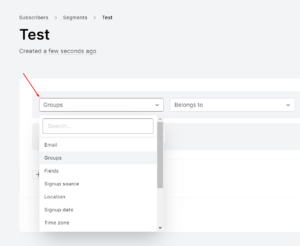
You can personalize campaigns using dynamic content blocks and variables like first name, location, or custom tags. It’s easy to specify who sees each block and who doesn’t.

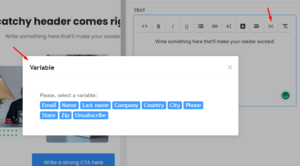
The only limitation I noticed is that subscriber fields are basic. You only get text, number, or date fields. There are no dropdowns or radio buttons, which can make data a little messy—for example, some subscribers might type “USA” while others write “United States.” This makes advanced segmentation harder.
Overall, MailerLite’s list management is clean, simple, and beginner-friendly. It’s not as advanced as tools like ActiveCampaign, but it’s perfect if you want something that just works without getting complicated.
MailerLite Registration Forms: Easy to Build, Plenty of Options
When I started testing MailerLite, I wanted to see how easy it was to create signup forms. Forms are crucial for collecting subscribers, so they need to be simple and flexible.
First, MailerLite asks you to verify your domain before you can access the form builder (One time in the life), just like with the email campaigns. Once that’s done, you can add a name to your form and choose the type: pop-up, embedded form, or promotion (the last one is only for Advanced plan users).
Next, I created a new subscriber group to start building the form. MailerLite offers 24 templates, including full-screen, half-screen, modal, and slide-in forms. They’re modern, clean, and easy to customize.
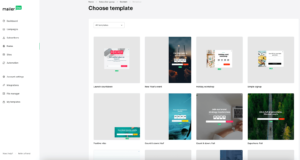
The drag-and-drop builder itself was very smooth. Everything is visible, the UI is clean, and adding content blocks like text, images, countdown timers, or social links is easy. You can also tweak fonts, buttons, backgrounds, and overall layout without any hassle.
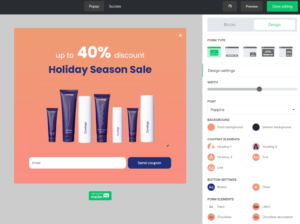
MailerLite makes design simple. You can change the form type, colors, width, and compliance options like privacy policy, GDPR, confirmation messages, interest groups, and reCAPTCHA. After someone subscribes, you can create a post-subscription success message, which is convenient and fast.
Once your form is ready, you can set triggers, frequency, schedule, and visibility. You can also A/B test your forms to see which version performs better—a useful feature for improving conversions.
The only small limitation I noticed is that adding custom fields or dropdown lists isn’t as straightforward as in some other email tools.
Overall, MailerLite’s registration forms are user-friendly, flexible, and fast to create. Whether it’s pop-ups, embedded forms, or subscribe buttons, the templates and builder give you everything you need to start collecting leads quickly.
MailerLite Reporting: Basic but Useful
When I tested MailerLite, I wanted to see how easy it was to track my email campaigns and performance. Measuring opens, clicks, and overall success is key in email marketing.
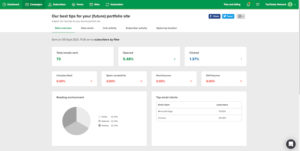
MailerLite gives you access to basic metrics like open rates, clicks, and click-to-open rate (CTOR). You can even see open rates by location and click maps, which are nice for understanding how subscribers interact with your emails.
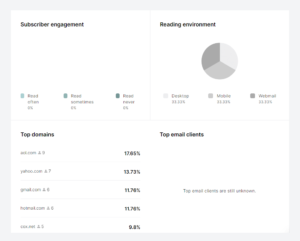
To check subscriber stats, you go to the Subscribers tab and click on the stats option. For individual campaign reports, you need to send the email first and then check its performance. For a quick overview, the Campaigns box on the dashboard shows open rates, clicks, and CTOR at a glance.
mailerlite-reporting-subscriber-stats
eCommerce tracking is available too, but it only works for WooCommerce and Shopify stores.
There are some limitations. MailerLite doesn’t have a dedicated analytics tab, and the reports are quite basic. You cannot filter bot clicks or Apple Mail Privacy opens, which can affect your results. If you need advanced reporting features like custom reports, heatmaps, or detailed campaign comparisons, MailerLite may feel limited.
The good news is that you can integrate Google Analytics to get extra insights, including location-based tracking.
Overall, MailerLite’s reporting is easy to use and enough for beginners, but advanced marketers may find it a bit too simple.
MailerLite Landing Page Builder: Simple and Fast
Moving beyond emails, I tested MailerLite’s landing page builder, which you’ll find under the Sites tab in the left menu.
To get started, I just had to name the page and choose a subscriber group. After that, MailerLite lets you either start from scratch or pick from one of their pre-made templates.
mailerlite-landing-page-templates
MailerLite offers 49 landing page templates, neatly organized into categories. The designs look modern and clean, and customization is easy.

The editor itself works just like MailerLite’s email builder. It uses the same drag-and-drop layout, so if you’ve already built emails, there’s almost no learning curve.

Compared to dedicated landing page tools, MailerLite’s builder is more basic — but that’s not a bad thing. It’s fast, simple, and good enough for lead generation, newsletter signups, and basic product pages without needing extra software.
MailerLite also lets you host landing pages on their domain or publish them on your own custom domain. There’s also a Stripe integration, which makes it easy to sell digital products directly from your landing pages.
That said, there are some limits. Free plan users don’t get access to landing page templates and must build everything from scratch. Custom domain publishing is also locked behind paid plans.
Overall, MailerLite’s landing page builder isn’t meant to replace advanced tools like dedicated page builders — but for quick, clean pages that convert, it does the job well and fits nicely into the platform.
